TL;DR: Hearts of Iron 4 mod installation on Steam starts by subscribing to the correct Workshop item and waiting for its download. Add it and its required dependencies to a clean launcher playset, enable that playset and verify the content in a fresh session. Diagnose download, launcher, compatibility and save problems separately.
Subscribed, downloaded, enabled and working are four different checkpoints. Follow them in order instead of installing several unrelated mods and guessing which one failed.

This guide uses the official HOI4 Workshop instructions and Paradox’s current mods-and-playsets support article. It makes no compatibility promise about an individual community mod.
On this page
Hearts of Iron 4 mod installation: check the item first
Open the Workshop for Hearts of Iron IV and select the exact item you intend to use. Check its title, creator and description so you do not install a similarly named submod or outdated alternative.
Read the supported game version, required items, expansion requirements and installation instructions stated by the author. These establish the intended setup for that mod.
A submod may require a parent overhaul rather than working by itself. A mod that changes the same systems as another can also require a specific compatibility patch or author-prescribed arrangement.
Choose one main change for the first installation. If you want an overhaul, begin with that item and the dependencies it actually requires before adding optional extras.
This guide does not verify any particular mod’s current requirements. Use the actual item page, update notes and author instructions for the version you are installing.
Subscribe and let Steam finish the download
Subscribe to the item using the Steam account that will launch the game. The official Workshop description identifies Subscribe as the way to add ready-to-use content.
Inspect Steam’s download activity and allow the relevant Workshop download to complete. Seeing Subscribed on the item page does not prove the local content is already ready.
Subscribe to required items as well when the author lists dependencies. Keep a short record of the item names or links so you can compare the intended installation with the launcher.
If the download is pending or failing, address that stage first. Changing launcher settings cannot finish a Workshop download that Steam has not supplied.
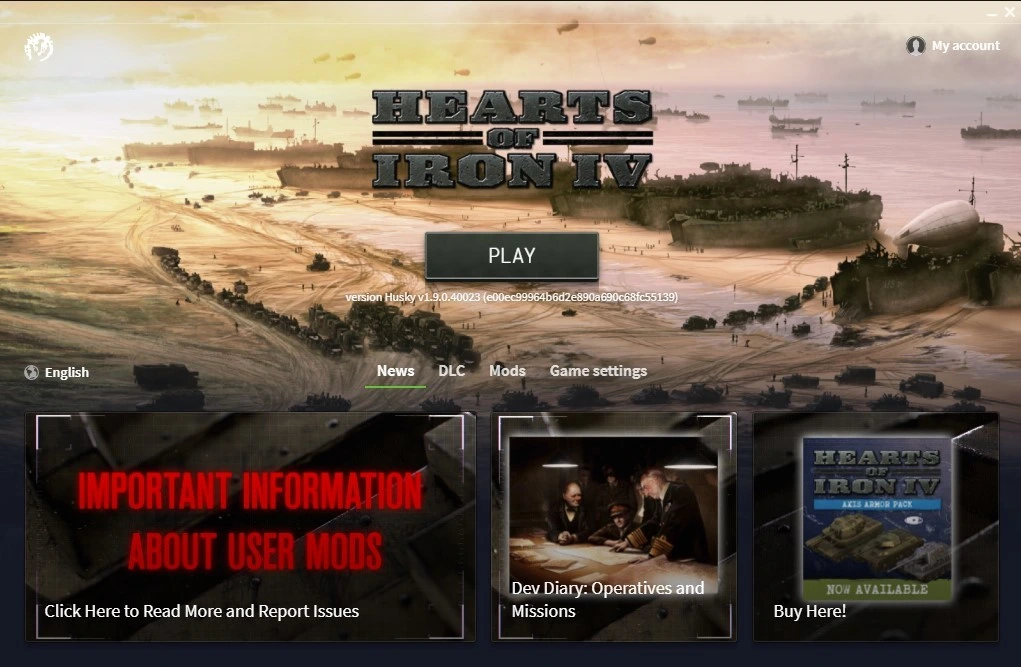
Once Steam has completed the content, launch HOI4 through its normal launcher and inspect the available mod list.
Enable a controlled playset in the launcher
Create or select a playset for the installation and give it a clear name. Add the intended mod and required dependencies, then inspect which items are enabled.
Confirm that this is the playset selected for launching the game. A mod can be present in the launcher without belonging to the active combination.
Follow any order or compatibility instructions the author provides. Do not assume that enabling every subscribed item together creates a supported setup.
Keep the initial playset small. Use one main mod and its required items so that an unexpected result has a manageable set of possible causes.
The official launcher explanation identifies the launcher as the place for configuring mods. Its 2019 migration workaround and assurance about particular old versions are historical, rather than a universal current installation step.

Verify content in a fresh session
Start a fresh session suitable for the mod and look for the change it is supposed to make. Use the author’s description to decide what counts as a successful installation.
An overhaul may change the country selection or campaign, while a smaller interface or equipment mod may require inspecting the relevant screen. Reaching the main menu alone does not prove every intended change loaded.
Use a new test campaign before relying on a valuable existing save. A content installation and a save created under another configuration are different compatibility questions.
Record the game version, active playset and observed result. If the content works, add optional items one at a time and check the result after each meaningful change.
Diagnose the stage that failed
Identify where the process stopped. Start from the earliest failed checkpoint instead of repeatedly changing unrelated settings.
| Symptom | First inspection | Next useful step |
|---|---|---|
| Item is subscribed but unavailable locally | Steam download status and correct account | Complete the Workshop download |
| Downloaded item is absent from the launcher | Launcher mod visibility and official support guidance | Diagnose the launcher layer |
| Item exists but content is unchanged | Active playset and enabled items | Correct the launch combination |
| Fresh modded session fails | Requirements, dependencies and compatibility | Reduce to the intended minimal combination |
| Only an old save fails | Save’s original game and mod configuration | Separate save compatibility from installation |
Compare a fresh unmodded session if you need a baseline. If the base game also fails, a mod-only change is unlikely to address the entire problem.
When the minimal mod setup works, add other items individually. This makes a conflict easier to connect with a specific change.
Handle updates, old saves and multiplayer deliberately
Recheck compatibility after the game or mod updates. Read the author’s current supported version and update notes before assuming the previous combination still works.
A version warning is useful evidence, but changing its label does not update the mod’s content. The old launcher article’s assurance about one historical patch transition is not a promise that all outdated mods are harmless.
Keep the working playset and version information for an ongoing campaign. If an update breaks that campaign, compare the changed configuration with the one under which the save was created.
For multiplayer, compare the game version and intended mod combination before hosting. Read the specific mod’s multiplayer instructions instead of assuming that everyone having the same subscription name is sufficient.
Record dependencies and author-required ordering as well as the main item. Those details help explain why two apparently similar installations behave differently.
Use official support for persistent launcher problems
If downloads are complete but mods or playsets remain invisible, use the current official launcher support article. It identifies security-software interference as one possible cause of visibility problems.
Inspect a concrete blocked-access event or the relevant support instructions before changing protection settings. The article’s example executable paths are not your actual installed paths.
Preserve the playset information and important campaign files before following any support procedure that resets local configuration. Choose a procedure for the diagnosed problem rather than deleting unrelated folders.
The official launcher hotfix advice also recommends disabling outdated mods when diagnosing launch problems. Apply that as a controlled comparison and verify the result.
FAQ and the final check
Is Subscribe enough?
Complete the download, enable the intended playset and verify the content. Subscription is the first checkpoint.
Should I enable every subscribed mod?
Begin with one main item and required dependencies. Follow the authors’ compatibility instructions before combining more.
Does an old save failure prove installation failed?
No. Compare a fresh session and the save’s original configuration separately.
The Hearts of Iron 4 beginner guide covers the base campaign. Before using the mod for a long game, confirm the active playset and the expected content in a fresh session.
Sources and further reading
- https://steamcommunity.com/workshop/about/?appid=394360
- https://support.paradoxplaza.com/hc/en-us/articles/360020841079-My-Mods-or-Playsets-are-not-showing-up-in-the-Launcher
- https://steamstore-a.akamaihd.net/news/externalpost/steam_community_announcements/2448198215005957259
- https://steamstore-a.akamaihd.net/news/externalpost/steam_community_announcements/2448198215010260017
Keep exploring
Hearts of Iron 4 occupation laws: control resistance without draining reserves
Match occupation policy to resistance, compliance and a garrison you can actually supply; use stronger control only when the situation justifies its cost.
Games Like Hearts of Iron 4: choose what you want to command
Choose Stellaris for another empire project, CK3 for personal politics and heirs, or Ultimate General Civil War for tactical army progression.
Stellaris vs Hearts of Iron 4: discovery or industrial war planning?
Choose Stellaris for discovering a galaxy and shaping a space society; choose Hearts of Iron IV for coordinating industry, army design and politics around a WWII nation.