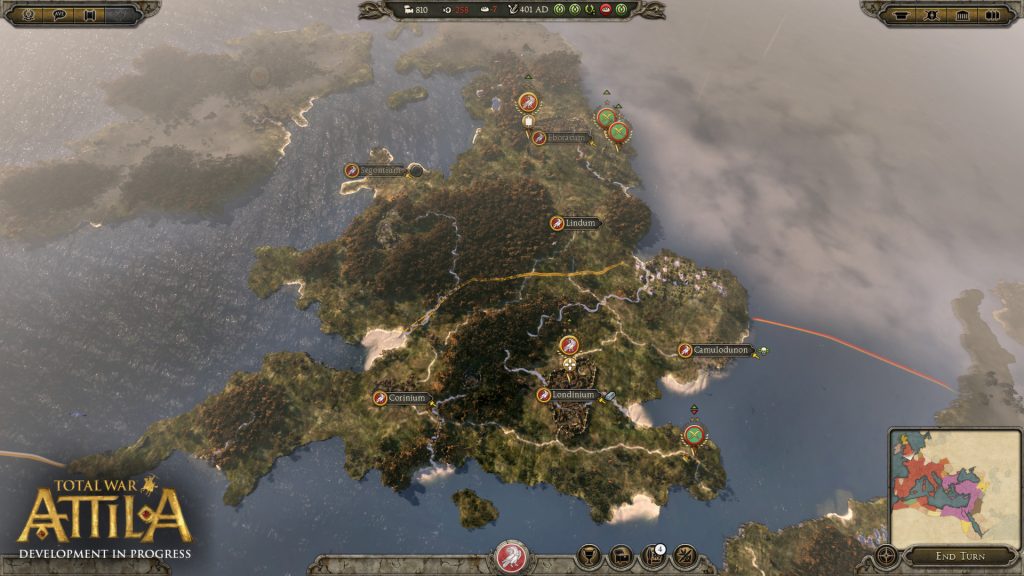
TL;DR: Total War ATTILA mod installation follows a simple sequence: choose the correct Workshop item, subscribe, let Steam finish downloading, then select the intended mods in the launcher. Read dependencies and compatibility instructions before starting a fresh session. A subscription confirms what you want downloaded; it does not prove that an existing campaign will work with the new content.
Use ATTILA’s own Steam Workshop and the mod author’s instructions. Begin with one mod or one documented collection of required components, verify its intended change and only then add optional items. This keeps download problems, launcher selection, conflicts and incompatible saves easier to distinguish.

The steps below focus on Steam Workshop installation. Manual packages need their own author’s file and activation instructions because there is no safe universal folder recipe for every ATTILA mod.
On this page
1. Confirm the item belongs to ATTILA
Open the Total War ATTILA Workshop and follow the item to its detail page. Check the game identity rather than relying on a search result title or a screenshot that resembles another Total War game.
Read the description, requirements and installation notes. Identify any required DLC, supporting components, recommended game version or conflicts the author actually lists. A campaign overhaul and a small visual change can have very different requirements even though both use Workshop.
Distinguish an individual mod from a collection. A collection is a way to group items; read which components are required and which are optional. Do not combine several campaign overhauls merely because they appear in the same search results.
Record the item link and the desired result before installing. For example, the author might describe a changed unit appearance or a new campaign option. That provides a concrete thing to verify after launch instead of using “the game opens” as the only success condition.
2. Subscribe and finish the download
Click Subscribe on the Workshop item’s page while using the Steam account that will run the game. The official Workshop description says ATTILA supports ready-to-use items delivered through subscription.
Return to Steam and check its download activity before launching. If the item is still downloading, let it finish. A launcher opened during an incomplete download can leave you diagnosing missing content before the required files have arrived.
Subscribe to required supporting items as directed by the author. Installing the main entry alone is insufficient when its description requires additional components. Conversely, avoid adding optional compatibility patches for mods you are not using.
If downloading stalls, diagnose Steam’s download state first. Confirm that the client is online and the subscription belongs to the correct account. Repeatedly changing the mod’s load order cannot complete a file download that has not finished.
3. Select the intended mods in the launcher
Open ATTILA through Steam and inspect the launcher’s mod controls. Confirm that the desired item is present and selected for the session, then review the other active items.
Creative Assembly’s ATTILA update announcement explicitly refers to its launcher mod manager. Its 2019 launcher announcement also names ATTILA among the supported games. These establish the launcher workflow; they do not establish the exact layout of every later launcher version.
Follow the controls displayed by your installed launcher rather than an old screenshot’s button position. For the first check, leave unrelated optional mods disabled. If the author requires several components, keep that documented set together rather than disabling a dependency to create an artificial one-file test.
Apply a load order only when the author provides one or explains a compatibility requirement. There is no single order that makes every overhaul, unit pack and visual mod compatible. Moving a conflicting mod above another without understanding the conflict can simply change which result appears.

4. Verify the change in a fresh session
Start the type of session the mod is meant to affect and inspect the promised change. A new campaign is a useful initial check for campaign content when an existing save was created under different rules.
Match the verification to the mod. A unit appearance change needs inspection of the relevant unit. Campaign content needs the applicable faction or campaign selection. A battle-only change may not be visible on the main menu.
If the expected content appears, save separately from the campaign you want to preserve. Keep a short record of the active components so you can reproduce the setup later. One successful launch does not prove that every faction, campaign turn or multiplayer arrangement is supported.
If the author says existing saves are incompatible, start a new campaign for that mod. If save compatibility is undocumented, preserve the old save and test separately rather than treating the absence of a warning as a guarantee.
5. Diagnose the stage that failed
A missing download, absent launcher entry, launch crash and missing gameplay change need different checks. Identify where the sequence stops before changing more settings.
| Symptom | First check | Useful next comparison |
|---|---|---|
| No completed download | Steam account, subscription and download activity | Whether the required supporting items finished too |
| Item absent from launcher | Completed download and correct game’s Workshop entry | Close and reopen the launcher after Steam finishes |
| Game fails with mods active | Dependencies and listed conflicts | An unmodified session, then the required mod set |
| Game runs without expected change | Active selection and appropriate campaign or unit | Author’s verification example in a fresh session |
| Old campaign fails | Author’s save-compatibility instructions | A new campaign using the same selected components |
Change one meaningful variable at a time. If the unmodified game also fails, investigate the game or launcher baseline before blaming the newly installed mod. If only the combined set fails, compare the documented required set with optional additions.
Keep saves and configuration records before a support procedure that resets local settings. Avoid copying a destructive cleanup from an unrelated game guide. A manual reset should address a diagnosed problem and use instructions applicable to your installation.
6. Treat manual packages as a separate workflow
Use manual installation when the mod author distributes that package and supplies instructions. Workshop subscription and a downloaded archive are different delivery methods, so do not automatically install both copies.
Read the package’s file placement, activation, dependency and removal instructions before extracting it. Avoid guessing a Windows directory from a Mac guide, copying ROME II paths or replacing game files because another mod required that operation.
For multiplayer, agree on the intended mod setup with the other players and check the author’s support statement. Matching names in a subscription list alone does not establish matching active content or multiplayer compatibility.
Frequently asked questions
Is subscribing enough to use a mod?
It starts delivery through Workshop. Confirm the download and the launcher’s active selection, then inspect the intended content in the game.
Do I need the Assembly Kit to install Workshop items?
Ready-to-use Workshop items are installed through subscription. Follow the item’s stated requirements rather than downloading authoring tools as a routine installation step.
Will a mod work with my existing save?
That depends on the mod and save. Follow the author’s compatibility instructions and preserve the existing campaign before testing.
Finish with one confirmed setup: downloaded components, deliberate launcher selection and the expected change in a fresh session. If you are also learning the base campaign, the Total War ATTILA beginner guide provides a reference before an overhaul changes its rules.
Sources and further reading
Keep exploring
Total War Warhammer 3 vs Total War Attila: fantasy or survival?
Choose WARHAMMER III for fantasy races and Legendary Lords; choose ATTILA for late-antique survival, vulnerable territory and destructive warfare.
Total War Rome 2 vs Total War Attila: build an empire or survive?
Choose ROME II for classical empire growth; choose ATTILA for late-antique survival, a vulnerable Western Roman Empire and destruction mechanics.
Total War Attila vs Total War Shogun 2: survive or reunite?
ATTILA offers late-antique survival and destructive warfare; SHOGUN 2 centers a clan campaign on reunifying Japan.