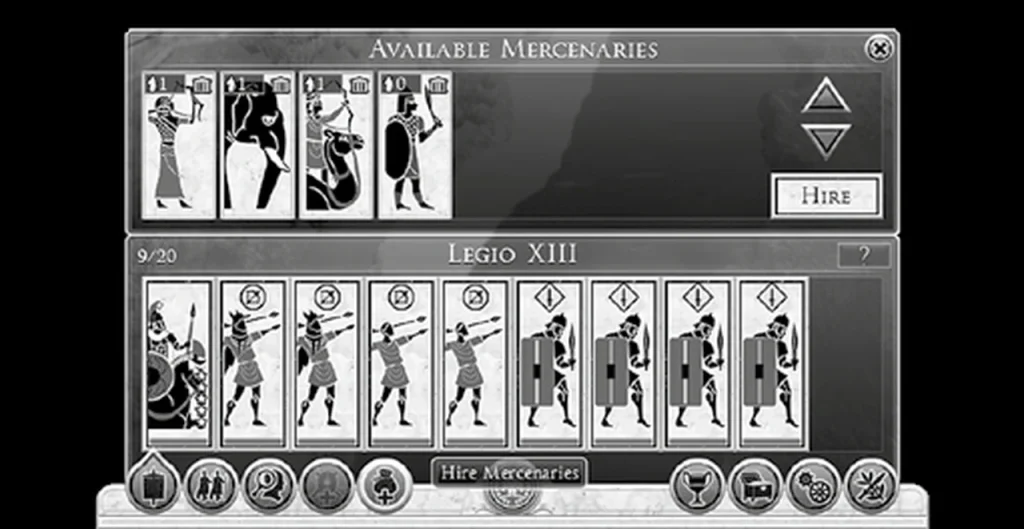
TL;DR: Total War Rome 2 mod installation through Steam Workshop has three stages: subscribe to the correct item, let the download complete, and activate the mod in the game’s launcher. The official Total War wiki describes the Mod Manager’s download progress and activation checkboxes. A subscribed item is not proof that its effect is active in your campaign.
Read the mod author’s requirements before starting. Required parts, campaign scope, DLC and save compatibility matter. Test a small configuration in a separate campaign before adding several modifications to a valuable existing save.

Sources and scope: This guide uses the official Steam Workshop and Mod Manager instructions and Steam’s Rome II Workshop explanation. Reviewed November 9, 2026. Launcher appearance can change, and each mod’s author supplies its specific requirements. This guide covers installation through the documented Workshop route rather than an unverified universal manual-pack procedure.
On this page
Total War Rome 2 mod installation: separate the three states
Subscription tells Steam which Workshop content you want. Download completion means the files are available locally. Activation tells the launcher which of those items should affect the game. Treat them as separate stages when diagnosing a mod that appears installed but changes nothing.
The official wiki states that the launcher lists subscribed Workshop items, shows download progress and lets you choose active mods with checkboxes. You can keep more items subscribed than you use at one time. That flexibility is useful, but it also makes an oversized subscription list a poor guide to the actual configuration.
Start with a written description of the effect you expect. A unit reskin, an interface change and a campaign overhaul should be tested differently. Without a concrete expected change, a successful game launch can be mistaken for proof that the mod loaded.
1. Choose the correct Workshop item
Open the Rome II Workshop and verify that the item’s page belongs to Total War: ROME II – Emperor Edition. Similar titles exist across Total War games, and a modification for another game is not a compatible substitute.
Read the description, supported campaigns and recent author updates. The posting date alone does not establish compatibility. An older item may still be supported, while a recent upload may target a specific overhaul or beta configuration that differs from your installation.
Use the Workshop categories to narrow the job. Graphical and interface items can have different purposes from battle or campaign overhauls. A title that sounds like a complete improvement package does not establish which systems it actually replaces.
Identify the intended effect before subscribing
For an interface mod, note the element that should visibly change. For a campaign modification, note the faction, campaign or starting condition required to see its effect. For a unit mod, note the named unit and whether it must be recruited in a specific context.
This makes the later test meaningful. Looking for a campaign change in a custom battle, or searching for a unit before its requirements are met, can make a working installation appear broken.
2. Read required parts, DLC and compatibility notes
Some items depend on other Workshop content. A submod can require the underlying overhaul, and a multipart package can need more than the first visible entry. Follow the author’s actual required-item list rather than assuming every similarly named component should be enabled.
Distinguish a required component from an optional companion. Installing both conflicting alternatives can be worse than omitting an optional improvement. If the author provides a collection or dependency list, use it to understand the intended package before adding unrelated mods.
Check DLC and campaign requirements separately. Owning the base game does not establish that you have the campaign or faction content the mod expects. This guide does not provide a universal dependency recipe for every overhaul; the individual author’s instructions determine it.
Decide whether a new campaign is required
Campaign modifications can affect starting conditions or systems stored in a save. If the author requires a new campaign, launching an old one is an invalid installation test. Keep the existing save and create the recommended test configuration.
Do not assume that disabling the mod later restores every affected save to its previous condition. Preserve a copy of the original and record which configuration created the test. This gives you a usable return point if the modification is not suitable.
3. Subscribe and allow the download to finish
Steam’s official Workshop explanation directs you to the Subscribe button on the item’s detail page. Use the account that owns or launches the relevant game installation. After subscribing, allow Steam to process the content rather than launching immediately during an incomplete download.
The Total War wiki says the launcher can show progress for subscribed items. If the entry appears but downloading has not finished, wait for completion before diagnosing the item’s gameplay effect. The existence of a list entry does not mean every required file is ready.
If the item fails to appear, first confirm the subscription, account and game. These checks directly address the connection between Workshop and launcher. Adding more modifications or changing the whole game installation before resolving that link creates unnecessary uncertainty.

4. Activate the item in the launcher
Launch Rome II and open its mod-management area. In the documented launcher, activation uses a checkbox beside the item. Current layout or labeling can differ, but the important action is explicitly selecting which downloaded modifications are active.
For the first test, enable only the chosen item and its genuine requirements. Leave unrelated mods inactive. That gives a clearer answer if the game fails to start or the expected effect is absent.
Follow any author-specified order or configuration. There is no universal alphabetic load order that makes every combination compatible. When two modifications affect the same systems, their descriptions or compatibility notes are more useful than rearranging entries randomly.
5. Run a test that can show the change
Choose a test appropriate to the mod. An interface alteration can be inspected on the relevant screen. A unit appearance change requires the correct unit. A campaign overhaul should be tested in the supported campaign, with a new save when required.
Confirm the expected effect and advance far enough to exercise the changed system. A successful main-menu launch is necessary but may not reveal a campaign-start problem. Likewise, an ordinary battle does not establish that a modified building chain or political system works in an older save.
Record the active package before adding another item. A short list of names, required parts and supported campaign is sufficient. This helps separate a later conflict from the configuration that already passed its initial test.
6. Add other modifications one at a time
After the first configuration works, add another item and repeat the relevant test. This is slower than activating a large collection in one click, but it makes a failure traceable. Without that separation, you cannot easily tell whether the problem is a missing dependency, a conflicting replacement or the wrong campaign.
Prioritize modifications that serve distinct needs. Several overhauls or competing replacements for the same system deserve careful compatibility evidence. More active items do not automatically create a better game, especially when their assumptions differ.
For multiplayer, compare the required configuration with the other participants before relying on a campaign save. This guide does not promise that any particular combination is multiplayer-compatible. Use the mod’s documented support and the actual shared setup.
7. Troubleshoot the failed stage rather than everything at once
If the item is missing from the launcher, return to subscription and download status. If it appears but is inactive, fix activation. If it is active but has no visible effect, check the expected target, campaign and requirement list.
If the game crashes after a new item is added, return to the last working configuration and test again. Disable the recent change and its optional companions first. This isolates the cause without deleting the entire game directory or sacrificing unrelated saves.
If an update coincides with the failure, review the mod author’s compatibility information. Creative Assembly’s historical update announcements explicitly warned that major Rome II updates could require disabling or updating modifications. That is evidence for checking version compatibility, not a command to keep using an obsolete beta indefinitely.
| Observed problem | First useful check | Evidence of progress |
|---|---|---|
| No launcher entry | Correct game, account and subscription | The expected item appears |
| Download incomplete | Steam and launcher progress | Required content finishes downloading |
| Entry present but no effect | Activation and valid test context | The described change is visible |
| Failure with several mods | Last working configuration and dependencies | One specific addition reproduces the problem |
| Failure only in an old save | Author’s save compatibility requirement | A supported new campaign behaves correctly |
Disabling and unsubscribing are different decisions
The official Mod Manager documentation permits downloaded subscribed items to remain inactive. Use that distinction when testing. You can disable an item while deciding whether it conflicts with another package, without treating the subscription list as the active setup.
Unsubscribing changes which Workshop items Steam tracks. If you intend to remove a package permanently, preserve saves that depend on it and follow the author’s removal guidance. Do not assume that a save created under an overhaul is automatically safe after the overhaul is removed.
Frequently asked questions
Why did subscribing not immediately change my game?
Subscription, download and activation are separate stages in the documented Rome II process. Confirm each one, then use a test that can show the mod’s actual effect. A change outside the supported campaign may remain invisible.
Do I need every item in a large collection?
Follow the collection and mod authors’ requirements. Required parts, optional companions and incompatible alternatives are different. A collection is useful context, but its size alone does not establish the right active package for your campaign.
Should I upload files to install someone else’s mod?
No. The official wiki’s upload section concerns publishing a mod you created. Ordinary Workshop installation uses subscription, download and launcher activation. Do not confuse the creator’s workflow with the player’s installation steps.
Sources and further reading
- https://wiki.totalwar.com/w/Steam_Workshop_and_How_to_Make_Mods
- https://steamcommunity.com/workshop/about/?appid=214950
- https://steamcommunity.com/app/214950/workshop/
- https://steamstore-a.akamaihd.net/news/externalpost/steam_community_announcements/2454911758740574427
- https://steamstore-a.akamaihd.net/news/externalpost/steam_community_announcements/1407665761166918750
Keep exploring
Total War Rome 2 Diplomatic Expansion: protect your next conquest
Use diplomacy to support an expansion plan through reputation, understood treaty obligations and bounded allied war coordination.
Total War Rome 2 vs Total War Three Kingdoms: territory or characters?
Choose ROME II for classical civilizations and empire development; choose THREE KINGDOMS for Chinese warlords and relationships that connect statecraft with battle.
Total War Rome 2 vs Total War Attila: build an empire or survive?
Choose ROME II for classical empire growth; choose ATTILA for late-antique survival, a vulnerable Western Roman Empire and destruction mechanics.