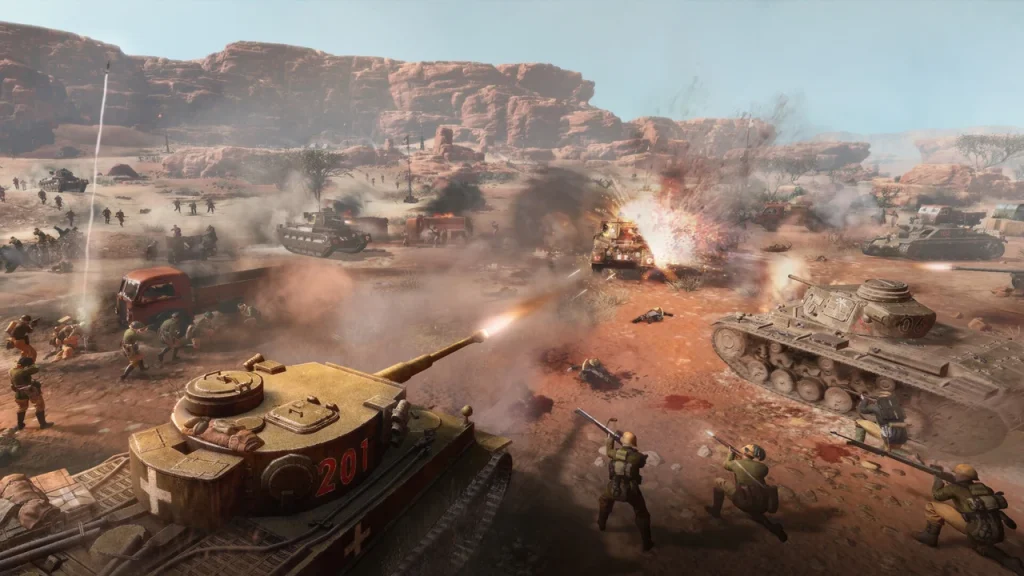
TL;DR: Find Company of Heroes 3 North African campaign missions through the campaign pane or the North Africa category in Mission Select. Confirm the selected mission, difficulty and save state before loading. Read each mission’s objective panel again after a major transition instead of assuming it follows ordinary skirmish rules.
Quick answer: Relic’s 3.0 update identifies eight missions in the North African Operation’s Mission Select category. Italy and the separate Operation Torch section have their own categories. Starting an available mission from that directory and continuing an operation save are different session choices.

This guide explains mission navigation and a practice workflow. It is not a tested walkthrough of all eight missions. The official 3.0 notes verify the category and count, document campaign save fixes, and describe changes to named North African missions. The official Steam page confirms the two base-game campaigns and optional Full Tactical Pause for single-player action. Use your installed mission directory for the exact titles and availability.
On this page
Company of Heroes 3 North African campaign missions: six menu steps
1. Choose whether to continue or practice
Before opening a mission, decide what progress you intend to preserve. Continuing the North African operation follows the campaign state you saved. Launching an individual mission is a practice entry point with its own selected mission context.
Use the relevant campaign or Mission Select route, then read the name of the pane you opened. A familiar desert background is not enough to distinguish the North African Operation from another scenario or future expansion.
For a first session, continue through the operation’s own introduction and briefings. For a later drill, choose an available mission whose controls or objective you want to revisit. Keep your notes clear about which route you used.
2. Open the North Africa category in Mission Select
The 3.0 screen organizes single-player content into categories. North Africa contains the original operation’s eight missions; Italy lists its own main missions. Read the category label before treating every visible mission as part of one continuous North African sequence.
The same notes describe a separate Torch section for Operation Torch. The announcement states that expansion releases on November 25, 2026. At this guide’s November 8 source check, its added menu section should not be read as proof that those expansion missions are already playable.
Inspect the available entries and their displayed information. Use this installed directory to identify a mission, rather than inventing a complete title list from screenshots or assuming that every North African-looking map belongs to the base operation.
3. Read the briefing and session settings
Select the intended mission and inspect its briefing before launching. Note the mission name, presented objective and any choices the screen exposes. A mission can restrict or introduce its own roster, so a faction’s ordinary skirmish production menu is not a complete mission guide.
Inspect the difficulty selection when offered by the campaign or mission setup. Choose a manageable level for learning the controls, then record that choice. If the goal is repeating one mission, changing difficulty and the mission at the same time makes the comparison harder to interpret.
Confirm the selected entry once more before loading. This small check prevents an accidental neighboring mission from being mistaken for an unexpected checkpoint or a broken campaign continuation.
4. Identify the active objective after loading
When the mission begins, read the objective panel and inspect the units you actually control. Distinguish the required task from optional prompts and nearby interactive objects. The opening roster and camera view provide context; the objective panel states what advances the mission.
Use Full Tactical Pause when available in this single-player session to examine the controls at a comfortable pace. Read the command card and visible objective markers, then resume after you understand the immediate task.
The beginner guide explains general selection and production habits. Apply only the controls available in the current mission. A remembered unit from a skirmish roster may not be part of the scenario’s permitted force.
5. Check the objective panel when the mission changes
After a cinematic, completed task or other major transition, review the objective panel again. Inspect any newly available units or commands before repeating the previous sequence. A mission’s next stage may ask for a different interaction even though the same map remains visible.
The 3.0 notes specifically document a time-of-day change during Gazala’s Cauldron. That verifies one presentation change in a named North African mission; it does not establish an unchanging visual reference for every stage or a universal trigger for progress.
If you lose track of what remains, return to the current objective text. Check the selected unit and visible interaction before assuming the mission is waiting for ordinary skirmish ticket depletion or another unit-production milestone.
6. Save, stop and resume deliberately
Inspect the save controls and create a recognizable entry when the mission permits it. Note whether the entry belongs to the operation continuation or the specific mission session. Confirm that it appears in the relevant load list before ending the session.
On returning, inspect the loaded mission name, active objective and current units. A successful load is the beginning of that check, not proof that you chose the latest progress state.
Relic’s 3.0 notes include fixes for loading earlier operation saves and for campaign mission achievements after resuming a save. These are documented repairs, rather than a guarantee that every possible save state behaves identically. Retain a useful entry if you encounter a reproducible issue.
Understand the mission directory’s limits
The verified count is eight missions in the North Africa category. It describes the original operation’s mission collection, not every desert skirmish map, expansion mission or campaign interaction included elsewhere in the game.
Mission Select also does not tell you that a particular roster, objective or difficulty matches a standard multiplayer setup. Read the mission’s own briefing and controls. If a production option is absent, determine whether the scenario provides a restricted roster before treating it as a missing universal feature.
For regular faction production practice, use the Afrika Korps production guide in a standard skirmish. The Italian campaign map guide covers the separate strategic campaign layer. Moving between these modes changes the context in which their menus should be read.

Practice case: the mission loaded, but the progress looks wrong
Imagine you want to continue a partly completed mission, but the loaded session shows an earlier objective and a different group of units. The location looks familiar, so you initially suspect that the mission reset itself.
First, check whether you launched a Mission Select entry or loaded the intended save. Compare the visible mission name with the save information. Starting an individual mission can look familiar while providing a different session state from a saved continuation.
Next, inspect the save list for the appropriate entry without immediately overwriting it. Confirm the recorded time and context. If you find the intended save, load it and verify the objective panel before continuing.
If the correct entry repeatedly produces an unexpected result, record the game version, mission, save and action that led to it. A consistent description separates a navigation mistake from a potential game issue and gives a support report something concrete to reproduce.
Make a useful mission practice record
Confirm the mission name when the presentation changes
Use the menu entry and objective information to identify the mission you loaded. A desert screenshot can illustrate the game’s setting without establishing the exact mission, difficulty or checkpoint. The 3.0 update changes lighting and presentation across campaign content, so visual memory alone can be an unreliable way to identify a saved session.
The official notes also include a loading-screen fix for El Alamein in Mission Select. That is a specific interface repair, not evidence that every campaign entry uses the same loading presentation. When comparing two sessions, record the displayed mission name before attributing a changed screen to a different campaign stage.
After a load or transition, pair that name with the active objective. This gives your practice notes a clear reference even when the camera, atmosphere or currently selected unit has changed.
Keep a short record with the mission title, entry route, difficulty, active objective and the control you are practicing. For example, the goal can be recognizing a changed objective panel after a transition. It does not need to be a claimed completion time or a perfect result.
After the attempt, identify the first point where the interface became unclear. Was the wrong unit selected, did you overlook a new objective, or did you load an earlier entry? Choose one correction for the next attempt while keeping the mission and difficulty stable.
This approach produces a more useful comparison than changing several settings and concluding that one attempt felt easier. It also keeps ordinary learning notes separate from evidence of a reproducible bug. A difficult task alone does not establish that the mission is malfunctioning.
Troubleshoot mission navigation and loading
The expected mission is missing. Check the selected Mission Select category and the entry’s availability. Confirm that the title belongs to the original North African Operation rather than a separate content section.
A familiar unit cannot be produced. Read the mission’s briefing and current command cards. Scenario availability can differ from standard faction production.
The mission continues after a visible task completes. Recheck the active objective and any new prompts. Do not infer the complete mission state from one marker disappearing.
A saved session seems older than expected. Inspect the entry time and mission context before making new progress. Preserve the intended entry while checking the alternatives.
An objective marker looks incorrect after loading. Recheck the objective text and selected interaction. The 3.0 notes include an objective-indicator save/load fix; a persistent problem should be documented with its specific save.


Frequently asked questions
How many North African missions are verified?
Relic’s 3.0 notes state that the North Africa Mission Select category contains all eight missions from the original operation.
Does the mission guide include a tested title-by-title walkthrough?
It covers the verified menu structure and practice process. No complete hands-on mission run or invented title list is claimed.
Can I use Tactical Pause?
The official description supports optional Full Tactical Pause for single-player action. Check its controls in the mission you loaded.
What should I practice next?
Choose one available mission, retain a recognizable save and review its objectives after a transition. The Company of Heroes 3 hub links the relevant mode and production guides.
Sources and further reading
Keep exploring
Games Like Company of Heroes 3: three different tactical choices
Choose COH2 for familiar squad tactics, Gates of Hell for direct unit control, or Steel Division 2 for division decks and Army General.
Company of Heroes 3 Mortar Tactics: 7 Practical Decisions
Use mortar fire to change a defended position, choose damage or smoke by the task, and move the supported army while the opportunity exists.
Company of Heroes 3 Battlegroup Selection: 7 Useful Decisions
Choose a battlegroup to supply a specific capability, then match its unlock path and spending to the battlefield problem you observed.